


An HTTP 403 Forbidden error indicates that a web server understands your request, but refuses to fulfill it. Unlike other errors, such as a 404 error (page not found), a 403 error means that the server knows exactly what you’re asking for, but is intentionally denying you access.
In this article, you’ll learn what exactly a 403 error is, how to solve it (as a WordPress website owner and as a website visitor), and what the causes are.
What exactly does an HTTP 403 error mean?
The HTTP 403 Forbidden error is one of the many HTTP status codes that servers use to communicate with web browsers. The number “403” specifically indicates that:
- The server perfectly understands your request
- The identity of the client (your browser) is known to the server
- Despite correct authentication, you do not have permission to view the requested content
A 403 error differs from a 401 error (Unauthorized) because with a 401 error, authentication is required but has not yet been provided. With a 403 error, authentication is not relevant or has been provided but is insufficient for access.
How do you recognize a 403 error?
A 403 Forbidden error can be displayed in various ways. Usually, you’ll see:
- “403 Forbidden”
- “HTTP Error 403 – Forbidden”
- “Error 403: You do not have permission to view this page”
But in some cases, the 403 code is not mentioned:
- “Access denied: You do not have permission to view this directory”
- “Forbidden: You do not have access rights to this resource”
How do you solve a 403 error (as a WordPress user)?
We’ll look at how to solve a 403 error as a WordPress website owner. Below you will find the most common causes and their corresponding solutions.
Incorrect file permissions
Probably the number one cause of 403 errors in WordPress is incorrect file permissions.
Solution: correct file permissions
- Log in to your hosting via FTP or File Manager
- Navigate to your WordPress installation
- Set the correct permissions:
- For directories: 755 (drwxr-xr-x)
- For files: 644 (rw-r–r–)
- For wp-config.php: 600 (rw——-)
You can do this by right-clicking on a file/directory and selecting “Rechten” or “Permissions.” In FileZilla, you can also use CHMOD commands.
.htaccess file corrupted or misconfigured
A corrupted or misconfigured .htaccess file can cause 403 errors.
Solution: recreate .htaccess
- First, make a backup of your current .htaccess file
- Delete the existing .htaccess file or rename it (e.g., to .htaccess_old)
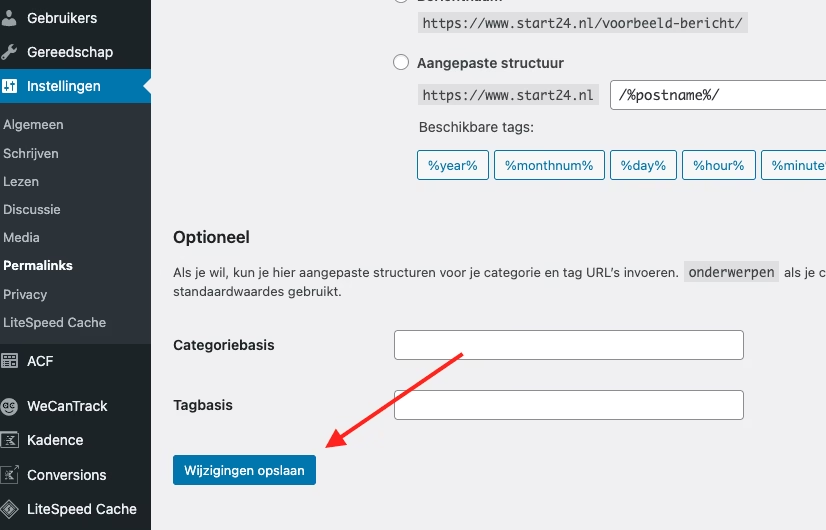
- Go to your WordPress dashboard >> Settings >> Permalinks
- Click on “Save Changes” without modifying anything
- WordPress will now automatically generate a new .htaccess file with the correct default settings
IP address blocked by firewall
Sometimes, your IP address is blocked by a firewall or security plugin.
Solution: unblock IP address
- Log in to your hosting control panel (DirectAdmin, Plesk, etc.)
- Look for the firewall settings (often under “Security” or “Beveiliging”)
- Check the list of blocked IP addresses and remove your own IP if necessary
- If you are using a security plugin like Wordfence, Sucuri, or iThemes Security:
- Log in to your WordPress site via FTP
- Rename the security plugin’s folder (e.g., from “wordfence” to “wordfence_disabled”)
- Try accessing your site again
- If this works, log in to your dashboard and configure the plugin correctly
Mod_security blocking access
Mod_security is a security module on web servers that can block legitimate traffic if it seems suspicious.
Solution: adjust mod_security rules
- Contact your hosting provider and ask if mod_security is enabled
- Ask if they can disable specific rules that are causing you problems
- If you have access to your server configuration, add this to your .htaccess:
<IfModule mod_security.c>
SecFilterEngine Off
SecFilterScanPOST Of
</IfModule>
Note: only disable mod_security if you know what you are doing. It is an important security layer.
Plugin or theme causing a conflict
Sometimes a plugin or theme can cause 403 errors due to conflicts.
Solution: deactivate plugins and themes
- Log in to your server via FTP
- Go to wp-content/plugins/
- Rename the “plugins” folder to “plugins_old” (this deactivates all plugins)
- Check if you can access your site
- If that works, rename the folder back to “plugins”
- Activate plugins one by one to find the conflicting plugin
- If the problem persists, try deactivating your theme by temporarily renaming the folder wp-content/themes/[your-theme]
Too many redirects
An incorrectly configured redirect can lead to 403 errors.
Solution: check and correct redirects
- Check your .htaccess for redundant redirect rules
- Check your WordPress settings (both site URL and WordPress URL should be correct)
- Check redirects in any SEO plugins or redirect plugins
- Clear your browser cache and cookies, or try another browser
Issues with CDN or proxy
If you’re using a CDN like Cloudflare or a proxy, it can cause 403 errors.
Solution: adjust CDN or proxy settings
- Temporarily disable your CDN to see if the problem is caused by it
- In Cloudflare:
- Temporarily enable “Development Mode”
- Check the Firewall Rules and Page Rules for blocks
- Disable “Rocket Loader” and “Minify” if they are enabled
- Ensure your CDN is correctly configured for WordPress
Incorrect database access
In some cases, a 403 error can occur when WordPress does not have access to the database.
Solution: check database settings
- Check your wp-config.php file for correct database settings
- Ensure the database user has the correct permissions
- Check if your database server is accessible
- If you have recently moved your hosting, make sure the database settings are updated
How to fix a 403 error (as a website visitor)?
This is how you can resolve 403 errors as a website visitor.
1. Check if you are logged in
Ensure you are logged in if the content requires access permissions. Sometimes you are automatically logged out after a certain period of inactivity.
2. Check the URL
Verify if you have entered the correct URL. A typo can sometimes result in a 403 error instead of a 404 error.
3. Clear your browser cache and cookies
Outdated cache or cookies can cause authentication problems:
- In Chrome: Press Ctrl+Shift+Delete (Windows) or Command+Shift+Delete (Mac)
- In Firefox: Press Ctrl+Shift+Delete (Windows) or Command+Shift+Delete (Mac)
- In Safari: Go to Safari > Preferences > Privacy > Manage Website Data
4. Use a VPN or proxy
If the website restricts access based on geographic location, a VPN service can help bypass this restriction.
5. Contact the website administrator
If none of the above solutions work, contact the website owner.
Common causes of 403 errors
For the completeness of this article, I will briefly discuss the exact reasons for 403 errors below.
1. Insufficient access rights
The most common cause is simply that you are not authorized to view the content. For example:
- A secured page that requires specific user rights
- A restricted section of a website accessible only to certain user groups
- Content restricted to users from specific geographic locations
2. File permissions on the server
Web servers have a system of permissions for files and folders. If these permissions are not correctly set, a 403 error may occur. This is relevant for webmasters and developers.
3. IP blocks
Many websites restrict access based on IP addresses. If your IP address is blocked, you will encounter a 403 error. This can happen if:
- You have sent too many requests in a short time (potential DDoS attack)
- Your IP address is associated with suspicious activity
- The website restricts access to certain countries or regions
4. Missing index files
When you visit a directory on a web server without a specific file, the server looks for an index file (such as index.html). If this file is missing and directory browsing is disabled, you will encounter a 403 error.
5. Robots.txt restrictions
For search engines and bots, a 403 error can occur due to restrictions in a website’s robots.txt file.

Leave a Reply