


Updating WordPress may sound like something you can easily put off and do when you have the time and inclination. However, updating your WordPress website is more important than most people realize, as it helps with additional security and bug fixes.
That’s why in this article you will read 10 useful tips to always keep your WordPress up to date and never suffer from an outdated website.
Handy tips for updating WordPress
At my.host, we are happy to help you keep your WordPress website up to date, so you never encounter bugs and your website has the latest features.
We provide you with 10 tips that help with updating your WordPress website and explain exactly how to do it.
Tip 1: Make a good backup
Before you even start updating WordPress, you should make a good backup. If the update doesn’t go well or just doesn’t work, you always have a plan B: your old website.
With your old website, you know how it works and where everything is. So when a problem arises, you always have your old website to fall back on. Nothing disappears for the time being, and that gives most domain owners more confidence to update WordPress.
Tip 2: Update not only WordPress, but also your theme
During the update of WordPress, you might be too focused on that one aspect, forgetting to also update your theme. It’s a small extra effort, but really necessary to maintain a professional website.
Your theme contains so-called PHP programming, where updates are also common. There might not always be an update available when you update WordPress, but checking certainly doesn’t hurt.
Tip 3: Check your plugins
When updating WordPress, it should be a standard step, but many people regularly overlook the plugins during this process.
You can see in WordPress if updates are available for the plugins you use. Also, look at new plugins that are available. There are sometimes plugins available in WordPress that can do the same as the old ones, but are regularly maintained and updated.
It’s always worth checking if an update (or upgrade) is available for your plugins.
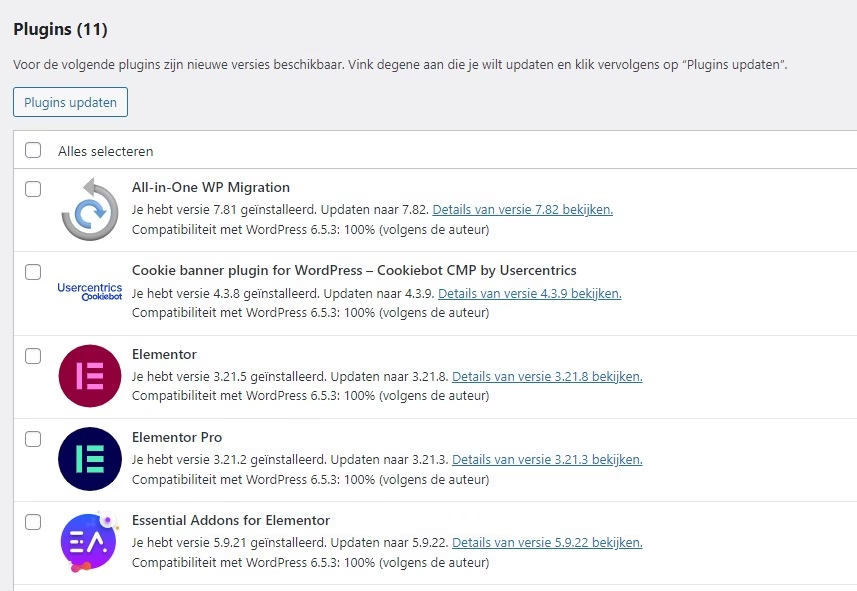
Tip 4: Search for and view tools that help with updating WordPress
There are many handy tools available that help with updating your WordPress website. Think of a tool that allows you to easily roll back updates, or one that clearly shows you previous updates and changes.
Without these tools, it’s also possible to update WordPress, but they often make it easier, more organized, and save you a lot of time with, for example, rolling back an update.
Tip 5: Test your updates using a staging environment
A staging environment is incredibly useful to check whether the updates work as expected and whether there are no glitches or other oddities. If something doesn’t work as you want, it’s easy to retrieve your old WordPress website without having to roll back various updates.
Check with your provider if they offer this. In our experience, many providers do, but not all yet.
Tip 6: Update individual components when problems arise
Nothing is more annoying than doing an extensive update and then discovering that there are problems. Your WordPress website has a glitch, buttons are no longer in the right place, or links don’t work as they should.
A solution to this problem is this tip: update individual components in WordPress. This way, you can see exactly which update is causing the issues and what you may need to adjust in WordPress for a successful update.
Tip 7: Regularly check if updates are available
As we mentioned earlier: updating WordPress is not entirely ingrained in the system for most domain owners and is often overlooked. We recommend setting “Update WordPress” as a recurring task in your calendar.
This way, time is reserved for it during your workweek, and it doesn’t have to be done quickly in between other tasks. For example, reserve a fixed moment once a month to check if updates are available. Also, keep in mind that you have time to implement them.
Tip 8: Follow the correct update order in WordPress
When you need to carry out multiple updates, a fixed order is a good idea in our opinion. For example, when you have to update WordPress, plugins, and themes, it is important to follow this order. So:
- Update WordPress;
- Update plugins;
- Update themes.
The reason for this order is that new plugins are often tested on the latest WordPress versions during creation. If you still have an older version of WordPress, you are likely to experience problems with your plugins. The same goes for themes, although some plugins are in between these. Hence, you should always update these last.
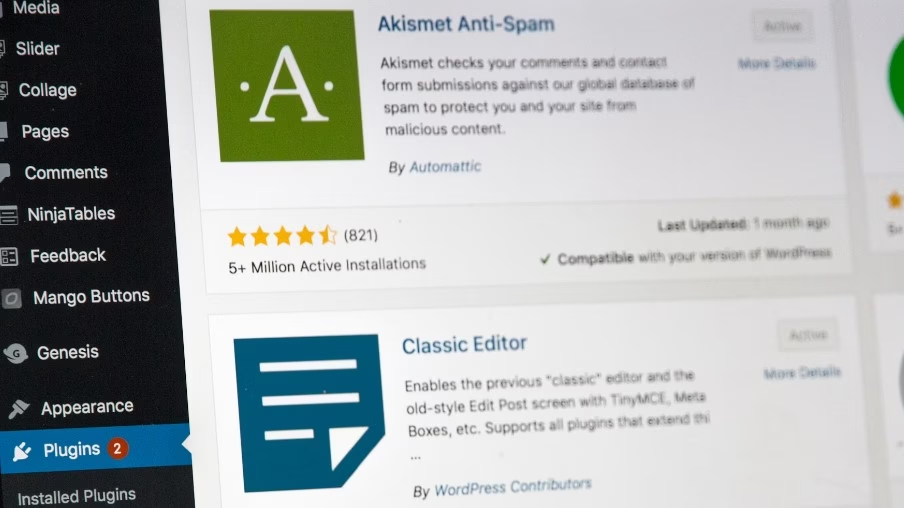
Tip 9: Research popular plugins
Nowadays, you can easily check which plugins are often installed and are popular with other website administrators or owners. We at my.host recommend using these plugins as well. The chance of having problems with them is smaller than with plugins that are rarely installed on WordPress.
Tip 10: Always take a look at your website from the front
Everything may look fine on the back-end, but from experience, most website administrators know that a small mistake is easily made. Therefore, we recommend always checking your website from the front for all the details.
Outsourcing WordPress updates
With these 10 tips for updating WordPress, we hope to have made it a bit easier for you. Regardless, it is important to dedicate some time to it and regularly update.
From your web hosting, you can also set up automatic installations of updates with us. Interested? Check out our WordPress services, at my.host, we offer various hosting services with automatic update installations. It might be something for you.
WordPress hosting bestellen?
Makkelijk, snel & veilig je eigen WordPress website.


Leave a Reply