

The White Screen of Death (WSoD) is one of the more frustrating problems that can occur with your WordPress site. You see a completely white page with no error messages. This can happen on the front end of the website, the admin panel (wp-admin), or both.
The cause is usually a script error or a memory limit being exceeded. WordPress suppresses the actual error message to prevent visitors from seeing sensitive technical information. That’s why the screen remains white.
In this article, I’ll show you the steps you can take to solve this problem yourself in as little time and with as little frustration as possible.
We’ll start with the easiest solutions and gradually move to more complex methods (should the simple solutions not resolve the issue).
Step 1: Quick initial checks
Before making any technical changes, it’s essential to rule out local issues and caching.
Browser cache and cookies
Clear your browser’s cache (I personally use the Clear Cache extension for this). Old files can give a distorted view. Test the website in an incognito window or another browser. If the site loads there, the issue is local.
Server caching
Are you using server-side caching like Varnish or Redis? Clear this cache through your hosting control panel (such as DirectAdmin or Plesk). An outdated cache might continue to show a defective version of the site.
Check the server status
Do you have multiple websites on the same hosting package? Check if these are accessible. If all sites are offline, there might be a server-wide issue. In that case, contact your hosting provider directly.
Step 2: Enable error debugging (debug mode)
Okay, if these “open door” solutions don’t offer relief, it’s time for heavier measures. We’ll debug.
The white screen provides no information about the cause. You need to force WordPress to display or log errors. You do this through the debug mode.
Connect to your server via FTP or use the File Manager in your hosting panel. Find the file wp-config.php in the root directory of your WordPress installation.
Open the file and look for the line:
define( ‘WP_DEBUG’, false );
Change false to true and add the logging line. The block will look like this:
define( ‘WP_DEBUG’, true );
define( ‘WP_DEBUG_LOG’, true );
Save the file. Reload your website. You may now see an error message on the screen. If the screen remains white, check the /wp-content/ directory for a file named debug.log.
The error message often points directly to a specific file or directory name. This way, you know whether a plugin or theme is the cause.
Step 3: Exclude plugins
A conflict between plugins or an outdated plugin is the most common cause of a WSoD.
Via the WordPress dashboard
Do you still have access to the wp-admin area? Go to Plugins and deactivate all plugins. Check if the site works again.
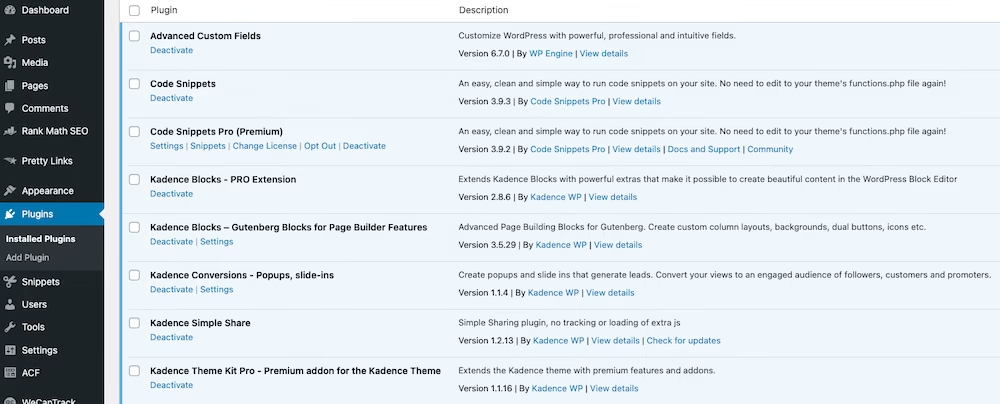
Then activate the plugins one by one. Check the website after each activation. As soon as the white screen returns, you’ve found the plugin causing the problem.
Via FTP or File Manager
Don’t have access to the dashboard? Navigate to the /wp-content/ directory via FTP.
Rename the plugins directory to plugins_old. This forces WordPress to deactivate all plugins.
Reload the website. Does it work now? Then the problem is with a plugin. Rename the directory back to plugins. Enter the directory and rename the folders of the individual plugins one by one to isolate the specific error.
Step 4: Exclude theme issues
If plugins are not the cause, the issue might be with the active theme. This could be due to an update with a bug, corrupt files, or because the theme conflicts with a new PHP or WordPress core version (this can happen if the theme is no longer maintained).
Navigate via FTP to /wp-content/themes/. Rename the folder of your active theme (for example, kadence to kadence_old).
WordPress will detect that the active theme is missing and automatically fall back to a default theme, such as Twenty Twenty-Six. Check if the site is now visible again.
Step 5: Increase PHP Memory Limit
A white screen can occur when a script requests more memory than the server allows. The process is then abruptly terminated.
You can increase the memory limit for WordPress in the wp-config.php file. Add the following line, just before the line “That’s all, stop editing”:
define( ‘WP_MEMORY_LIMIT’, ‘256M’ );
Save the file and test the website.
Also check in the hosting panel that the PHP settings are correct. In tools like the PHP Selector, you can often manage the memory_limit for the whole account. Ensure that it matches the value in your config file.
Step 6: Check syntax errors and recent changes
Have you recently manually added code to files such as functions.php? A small syntax error, like a missing semicolon or misused quote, directly causes a white screen.
The error message from Step 2 (Debug Mode) often indicates the exact line number where the PHP Parse Error occurs.
Remove the recently added code via FTP. If you’re not sure what was changed, restore a backup of the specific file.
Step 7: Advanced solutions
If the above steps don’t work, there might be an issue with the server configuration or the core files.
Check file permissions
File permissions determine who can read, edit, or execute files on the server. If these settings are too strict, the web server cannot load the files. This results in a white screen.
The correct default values for WordPress are:
- Directories: 755
- Files: 644
What do these numbers mean?
- 755 (Directories): The owner can do everything (read, write, execute). Visitors and the server can only open and read the directory.
- 644 (Files): The owner can read and write. Visitors and the server can only read the file.
Check and adjust permissions via FTP
- Connect to your server using an FTP program like FileZilla.
- Navigate to the public_html directory.
- Right-click on a directory (e.g.,
wp-content) and choose File permissions. - Enter 755 in the numerical field.
- If necessary, check Recurse into subdirectories and choose Apply to directories only.
- Repeat this for individual files (like wp-config.php), but use 644 and choose Apply to files only if doing this in bulk.
Note: Never set folders to 777. This is a major security risk as it gives everyone writing permissions.
Corrupt WordPress Core Files
Sometimes an automatic update of WordPress fails, causing core files to become corrupted.
You can solve this by manually reinstalling WordPress. Download the latest version from WordPress.org. Upload the wp-admin and wp-includes folders via FTP and overwrite the existing folders. Never overwrite the wp-content folder or your wp-config.php file, or you will lose data.
Step 8: Restoring Backups
Cannot identify the cause or is the damage too extensive? Then restore a backup.
Hosting providers, such as my.host, create automatic backups. Log in to your hosting panel and look for the backup manager. Choose a restore point from a date and time when the website was still demonstrably working.
Make sure you restore both the files and the database so your site functions again.
Conclusion
Solving a white screen is a (somewhat frustrating) process of elimination. Start with the cache, use the debug mode for insights, and then rule out plugins and themes.
To prevent this in the future, it’s wise to test updates in a staging environment first. With every my.host hosting package, you get access to 1-click staging functionality.
If you can’t resolve it with the above steps, contact the support team of your hosting provider.


Leave a Reply