


The launch of your WordPress website is only the first step. And while maintaining your site isn’t hugely complicated, it is very important that you do it.
The reasons for this are related to security (threat of hacks and data breaches), speed and performance (which have a direct impact on user experience and SEO), functionality (access to the latest features), and compatibility (ensuring all parts of your site work well together and continue to do so).
In this article, I will give you 7 tips to keep your WordPress website secure, fast, and functional.
7 ways to perform your WordPress maintenance
1. Always perform updates (safely)
Ensuring that the WordPress core, themes, and plugins are continuously up-to-date is the most important defense against vulnerabilities. Developers continuously release patches for discovered security gaps.
WordPress offers automatic updates by default for minor security updates (for example, from version 6.3.2 to version 6.3.3), and you can also set these updates for major WordPress updates (for example, from version 6.7.5 to version 7.1.1).
The problem? An update can (in very rare cases) partially break your site. So if you want to be really thorough, it’s wise to test updates – especially major updates – first in a staging environment.
A staging environment is an exact copy of your live website where you can experiment safely. At my.host you get WordPress staging included with all packages. This way, you can test updates before applying them to your real site.
Perform updates in this order if you want to be absolutely sure that nothing can go wrong:
- Make a backup of your live site
- Test the update in your staging environment
- Check if everything still works
- Apply the update to your live site
If you’re a bit more adventurous, you can set up automatic backups for the WordPress core, WordPress plugins, and WordPress themes. For sites that don’t heavily rely on these, I do this myself. So far, I’ve never had any problems with this.
But again, the best practice for important sites is to perform updates manually and test them first.
2. Schedule automated backups (and test them!)
An update can go wrong, a hack can occur. A recent backup is your only real safety net.
You have two options: through your hosting provider or with plugins. My.host makes daily automatic backups of all hosting packages which are stored for 7 days. You can easily restore them via the control panel.
For extra peace of mind, you can also look into plugins like UpdraftPlus or ManageWP, which offer more control over when and where your backups are stored. You can use these tools alongside provider automatic backups.
Important: a backup is only really valuable if you know you can restore it and know how to restore it. Schedule a restoration test at least once per quarter on your staging environment. This way, you ensure your backup works when you really need it.
3. Opt for quality and clean up
Be selective with the themes and plugins you install and remove anything you don’t use. Each plugin is a potential gateway for hackers. Inactive, outdated, or poorly coded plugins pose a significant risk.
These are my hygiene rules regarding plugins and WordPress themes:
- Only choose plugins and themes from reliable developers (check reviews carefully) with active support and recent updates
- Periodically (every six months) go through your plugin list and completely remove everything unnecessary from your site (not just deactivate)
- Pay attention to the last update date – plugins not updated for more than a year are better avoided
4. Run on the correct PHP version
PHP is the programming language that WordPress runs on. It is essential to use a recent, supported version. An outdated PHP version is slow and insecure. Updating can provide a substantial performance boost.
You can check your current PHP version via the “Site Health” tool in WordPress (Dashboard → Tools → Site Health). A green status means your version is up-to-date.
At my.host, you can choose your PHP version via the DirectAdmin control panel. PHP versions 4, 5, 7, and 8 are supported. As always, test new PHP versions on your staging environment before activating them on your live site.
5. Implement proactive security measures
Go beyond updating and take active steps to secure your site.
Two-Factor Authentication (2FA)
Enable 2FA for all admin accounts. Plugins like WP 2FA or The Two-Factor Plugin simplify this process. This prevents hackers from gaining access, even if they know your password.
Security Plugin
Install a reliable security plugin like Wordfence or Sucuri. They scan for malware, offer a firewall, and can block suspicious activity.
Limit login attempts
A simple but effective measure. Limit the number of failed login attempts to prevent brute force attacks.
Choose the right hosting
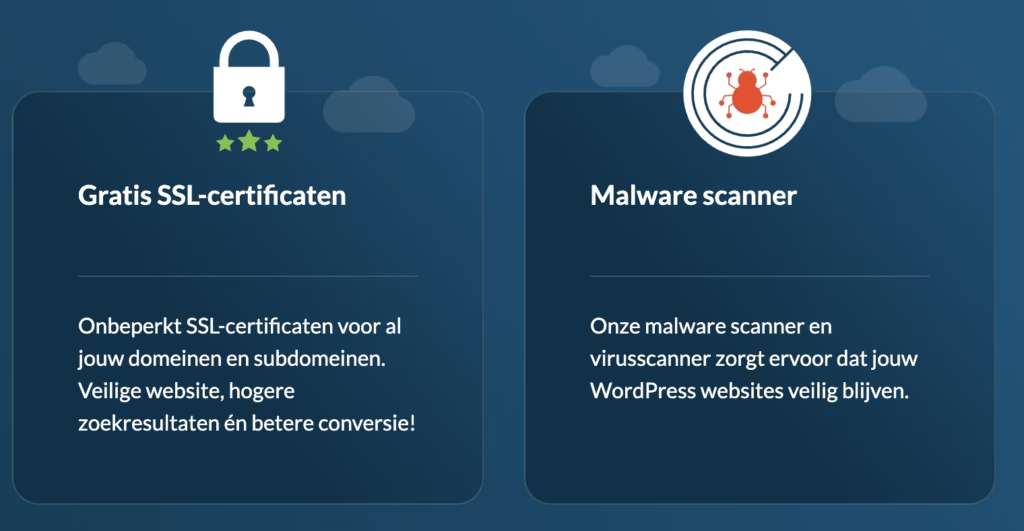
Select a hosting provider that takes security seriously. My.host, for instance, offers a WAF firewall, malware scanner, SSH access, and SSL certificates standard with all packages. Their servers run on CloudLinux, which isolates hosting accounts for extra security.
6. Schedule regular “deep cleans”
Maintenance that goes beyond technical updates ensures your website performs better and remains organized.
Database optimization
Remove old post revisions, spam comments, and ‘transients’. Plugins like WP-Optimize can assist with this. This makes your database faster and smaller.
Media library cleanup
Remove unused images and media. These take up unnecessary space and can slow down your site.
User management
Check all user accounts and remove old or unnecessary accounts. Ensure remaining accounts have the correct permissions. An old admin account of a former employee is a security risk.
7. Monitor health and speed
You can only solve problems if you know they exist. Active monitoring helps you spot issues before they escalate.
Site Health tool
Use the built-in “Site Health” tool of WordPress as a starting point. It warns you about outdated plugins, PHP versions, and other issues.
Speed monitoring
Use external tools like Google PageSpeed Insights to measure load speed and get concrete improvement tips. My.host achieved top scores in independent speed tests thanks to their LiteSpeed servers and Redis caching.
Uptime monitoring
Set up uptime monitoring with tools like UptimeRobot to receive immediate alerts if your site goes offline. This way, you can act quickly before your visitors notice.
Conclusion
Here are the 7 WordPress maintenance tips once again:
- Perform updates safely (always test first on staging)
- Schedule automated backups and test them regularly
- Choose quality over quantity for plugins and themes
- Run on a recent PHP version
- Implement proactive security measures (2FA, security plugins)
- Schedule regular deep cleans
- Actively monitor your site’s health and speed
With a hosting partner like my.host, who offers daily backups, staging environments, and security tools as standard, a lot of maintenance is already taken care of for you. But the responsibility for updates, content, and monitoring remains with you.

Leave a Reply