


I know the feeling all too well. You’ve worked extremely hard on your website and now you want to show it to the world. It looks fantastic, you’re proud of the result, and you can’t wait to hit that “live” button.
But take it easy for a moment.
A hasty launch can lead to technical errors, poor user experience, and missed opportunities. Think of a website that loads slowly, forms that don’t work, or worse: a site that’s not findable by search engines because you forgot to change a single obscure setting.
Use this checklist to ensure you don’t overlook anything before launching your site.
1. Technology & functionality: is everything working as expected?
Hosting and speed
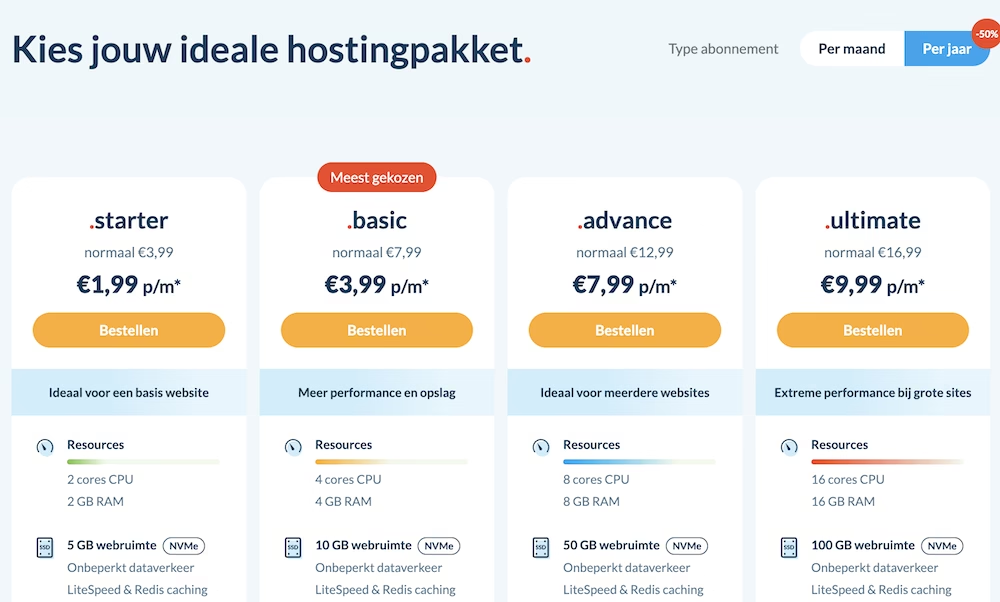
First, check if you have the right hosting package. Does your website have enough resources? With some hosting providers, you quickly hit a wall once your site starts gaining popularity.
Then run a speed test via Google PageSpeed Insights and GTMetrix. Is the load time good? Here, you want the TTFB (Time to First Byte) below 200ms. Anything above that falls into the “could be better” category according to Google.
No fast website? A provider like my.host uses blazing fast LiteSpeed servers from just a few euros per month to make your website fly.
SSL certificate
Is the SSL certificate active? Check if your site loads via https:// and not http://. Most browsers today warn visitors explicitly on sites without SSL, which looks incredibly unprofessional.
Responsive design
Test your website on different devices: desktop, tablet, and mobile. Do all elements scale well? Is the text readable, and are buttons easy to click on a small screen? A quick way to check this is through the inspect function in your browser.
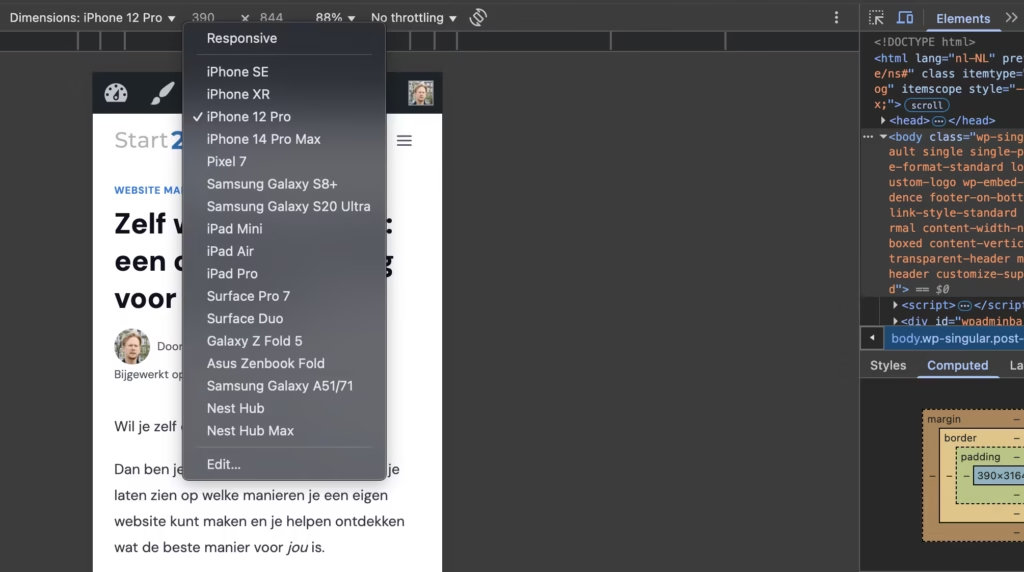
More than half of all website visits now come from mobile devices. With a website that doesn’t work well on a phone, you’re rubbing a significant portion of your visitors the wrong way. Additionally, Google has been indexing websites “mobile-first” for several years, meaning sites that don’t work optimally on mobile will rank significantly lower.
Browser compatibility
Open your website in the most commonly used browsers: Chrome, Firefox, Safari, and Edge. Check if it looks good everywhere. With WordPress, it doesn’t happen often, but occasionally there are peculiarities where a site loads fine on Chrome but has issues on Safari.
Testing forms
Do all forms work? Think of your contact form, newsletter subscription, quote requests, etc.
Test this thoroughly:
- Do you receive the test submissions at the correct email address?
- Does the user get a clear confirmation after submitting?
- Are required fields validated correctly?
Broken Links (404 errors)
Use an online tool like Broken Link Checker or a WordPress plugin like Broken Link Checker to scan for links that don’t work. Fix these immediately.
Broken links provide a poor user experience and can harm your search engine rankings.
2. Content & SEO: are you findable and professional?
Checking texts
Proofread all texts for spelling and grammar errors. Preferably, have someone else do this too – you tend to miss your own mistakes.
Correct language free from spelling errors can mean the difference between getting a lead and ending up empty-handed.
SEO basics
Check if your internal linking is consistent and adds value for your visitors. Link to relevant pages on your own site where it makes sense.
Are your URLs (permalinks) logical and search engine friendly? A URL like yourwebsite.com/services/webdesign is much better than yourwebsite.com/?p=123.
Optimizing images
Are all images compressed to speed up load time? The LiteSpeed Cache plugin includes this functionality as standard.
Do all images have relevant alt text? This is important for accessibility and SEO. Describe what is shown in the image in a few words.
Favicon / site icon
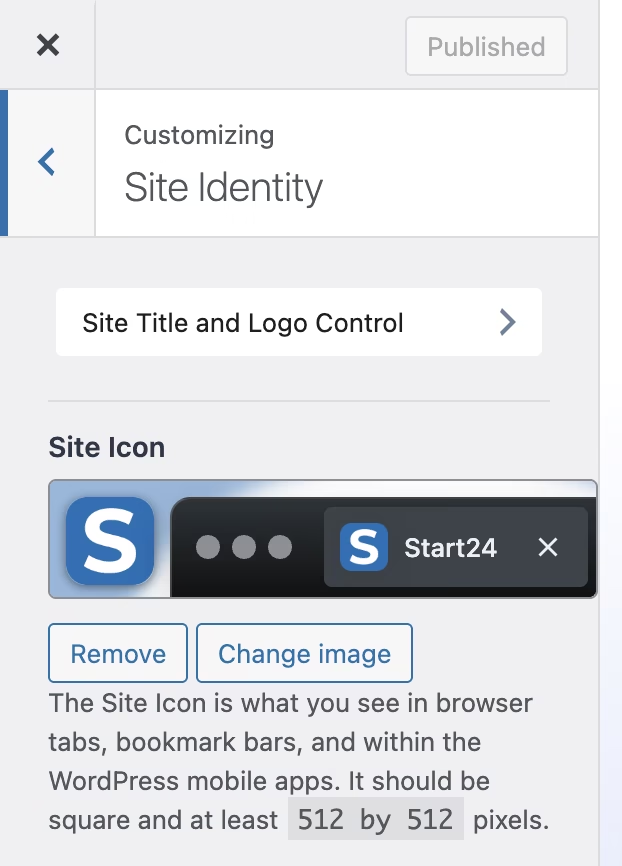
Is there a favicon (the small icon in the browser tab) set? This detail makes your site look more professional. You can set this via the WordPress Customizer.
Analytics and Search Console
Is your Google Analytics code (or a privacy-friendly alternative like Plausible) installed? Without analytics, you have no idea how your website is performing.
Is your website registered with Google Search Console and have you submitted the XML sitemap? This helps Google better index your site.
Important setting
This is essential: go to Settings > Reading in your WordPress dashboard and make sure that “Discourage search engines from indexing this site” is not checked.
This setting is often overlooked, but if you have it enabled, Google will completely ignore your site.
3. Design & usability: what about user experience?
A visitor decides within seconds whether to stay or leave. A good design and intuitive navigation are therefore a must.
Brand consistency
Are fonts, colors, and your logo used consistently throughout the website? Inconsistency is immediately noticeable and looks unprofessional.
Navigation
Is the main menu logical and clear? Try not to use more than 5-7 main menu items.
Do all the links in the menu, footer, and content work? Literally, click through your entire site to check this.
Is it immediately clear to a new visitor where to click? Test this by having someone who has never seen your site navigate through it.
Call-to-actions (CTAs)
Do the main buttons stand out well? Think of “Contact us,” “Request a quote,” “Buy now,” etc. Make sure the color of these buttons contrasts with the rest of your website.
These buttons are where you achieve conversions. They should be noticeable without being annoying.
4. Security & backups: is your site secure?
Strong passwords
Use strong, unique passwords for all admin accounts. A password like “admin123” is asking for trouble.
Updates
Are WordPress, your theme, and all plugins completely up to date? Outdated software makes your site vulnerable to hackers.
Set automatic updates for the WordPress core, themes, and plugins where possible (if you don’t feel like or have time to check this manually every week).
Unnecessary Themes & Plugins
Delete all inactive themes and plugins. Even if you don’t use them, they can still pose a security risk.
Keep only what you really need.
Security Plugin
Install and configure a security plugin like Wordfence.
Such a plugin helps in detecting and blocking suspicious activity.
However, security plugins are useless if your hosting is not secure. Therefore, always ensure you are with a provider that values security highly like my.host.
Backups
Ensure your hosting provider has automatic daily backups stored for at least 7 days.
Test if your backups work by creating one and checking if you can restore it easily and quickly.
5. Legal & Compliance: Does Your Site Meet the Regulations?
Avoid fines and build trust with your visitors by being transparent.
Privacy Policy
Is there a clear privacy policy outlining what data you collect and why? This is required under the GDPR.
You can use a generator like Privacy Policy Generator as a starting point, but preferably have it reviewed by a lawyer.
Cookie Banner
Is there a correctly configured cookie banner informing visitors and requesting permission for non-essential cookies?
Plugins like Complianz can help with this.
Company Information
Are your contact details, Chamber of Commerce number, and VAT number easy to find? This is especially important for companies and webshops.
In the Netherlands, you are required to display this information prominently.
Conclusion
By going through the steps in this overview one by one, you avoid the most common pitfalls that could hinder a website launch.
Remove the “Under Construction” or “Coming Soon” page if you still have it up.
Do a final quick check of your homepage and the main pages. Click through your site as if you are a new visitor in an incognito browser window.
And then the moment you’ve been working towards: go live with your site.

Leave a Reply