

Looking for an easy way to duplicate a page (or post)? Fortunately, this is very simple. You can do this directly in WordPress via the block editor, or via a plugin. In this article, I’ll show you how to do it.
Manually duplicate a page
If you only want to duplicate one post, there’s an efficient solution that doesn’t require the installation of external plugins.
Open the page you want to duplicate in editing mode, and you’ll see an icon with three dots in the top right.
Yep, that unobtrusive button you might have always ignored.
By clicking on it, a drop-down menu appears where you’ll find the option to copy the post content by clicking on ‘Copy all blocks’.
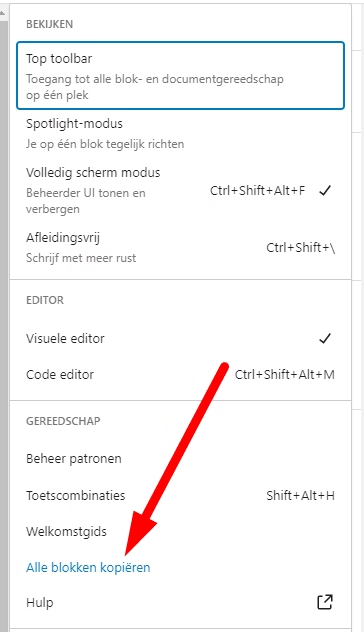
On the new page, you then use the paste function to place the copied content in a new post window.
For duplicating multiple posts, other methods are available. If this is relevant to you, read on for more detailed instructions.
Use a plugin
Don’t like manual work? Then a plugin offers a solution. There are several plugins available that you can use to duplicate pages (or posts). By far the most well-known is the Yoast Duplicate Post plugin.
This has already been used over 4 million times and does what it needs to do: it allows you to copy a post or page with a single mouse click.
I personally use the Duplicate Page (by mndpsingh287) plugin for multiple websites. It works just as simply as the one from Yoast.
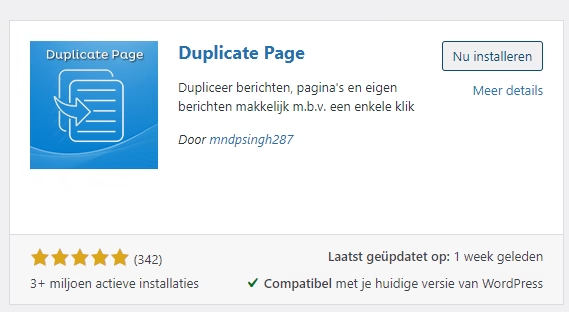
There are, by the way, dozens of similar plugins. In my opinion, it is not necessary to spend a lot of time comparing these plugins.
The plugin should do one thing in an easy and efficient way: ensure that you can duplicate one or more pages with 1 click.
And the above-mentioned plugins do this job well.
Good to know: slug/permalinks
If you use a plugin to duplicate your page or post, then WordPress automatically creates a variant of your original slug. For example, if you copy this URL: www.my.host/wordpress-test/ the new slug becomes: www.my.host/wordpress-test-2/
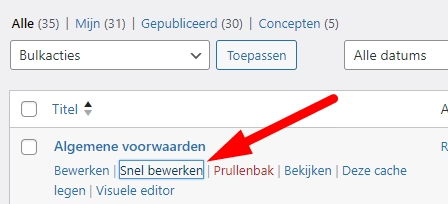
Often not the best choice. You can adjust the slug via, for example, the ‘quick edit’ option in WordPress:
Duplicate WordPress page to another website
Duplicating a WordPress page to another website can be handy when, for example, setting up a new subsidiary site, creating test environments, or simply transferring content between different domains.
Before you start, it’s good to check if you have a backup and if both sites are compatible.
- Backups: Ensure that both websites (the source and the destination) have a recent backup. This provides a safety net in case something goes wrong.
- Compatibility: Check if the themes, plugins, and WordPress versions of both websites are compatible. This can reduce future conflicts.
If this is in order, follow these steps:
- Export the Page:
- Go to the dashboard of the source website.
- Navigate to ‘Tools’ and click on ‘Export’.
- Select ‘Pages’ and then choose the specific page you want to duplicate.
- Click on ‘Download Export File’ to obtain an XML file of the page.
- Import the Page to the New Website:
- Go to the dashboard of the destination website.
- Navigate to ‘Tools’ and click on ‘Import’.
- Select ‘WordPress’ and upload the previously downloaded XML file.
- Follow the on-screen instructions, assign authors as desired, and ensure that you select the option to import media attachments.
- After completion, the page should now appear on your new website.
If you still find this too difficult, you can also use a plugin for this situation. Plugins such as Duplicator or All-in-One WP Migration are extremely suitable for this. Especially if you want to duplicate multiple pages or even entire websites.
WordPress hosting bestellen?
Makkelijk, snel & veilig je eigen WordPress website.



Leave a Reply