

Done with the spam in the comments on your blog posts in WordPress? Time to turn off WordPress comments. How exactly do you do this? We explain step by step below!
Why would you want to disable WordPress comments?
Bloggers, in particular, often face the problem of bots or trolls posting nonsense or unpleasant comments under their posts. There are also situations where it simply doesn’t have added value for users to leave a comment; and for some, it’s purely an aesthetic decision to deactivate this feature.
How do I turn off WordPress comments?
First, we need to log into the WP-Admin panel. If all goes well, you’re already quite familiar with this. You do this by typing your URL in the address bar followed by /wp-admin.
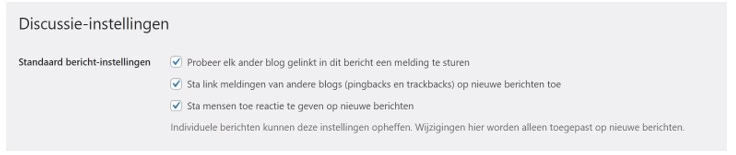
Once you’ve arrived at the Dashboard, move your mouse to Settings and then click on Discussion. Under the Default Settings, you should see a checkbox for the feature Allow people to post comments on new articles. If you want to turn this off, you can simply click on the checkbox. If there’s no check mark in the checkbox, then this feature is deactivated.
Other options within the Discussion tab
If you still want to allow comments but want to ensure that these comments comply with community guidelines, you can also choose to approve comments manually before they are publicly posted under your post!
You do this on the same page where you can turn off comments, but scroll down a bit until you reach Before a comment appears -> Comment must be manually approved. If you activate this feature, you’ll first receive a notification that you have a new comment, which you can read first and then decide to publish or delete.
You can also set additional conditions that people must meet before they can post a comment. Below you’ll see a screenshot with various options that you can change if desired.
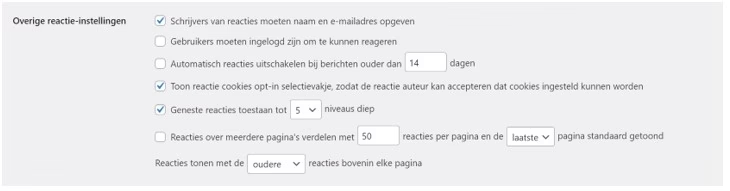
Don’t forget to save your settings before leaving the dashboard when you’re done, it will save you a lot of headaches!
It’s not rocket science to turn this feature on or off, but you do need to know where to find these settings. There are plenty of possibilities to adjust all conditions and variables to make it completely to your liking, so feel free to look around on this page!
Via “Quick Edit”
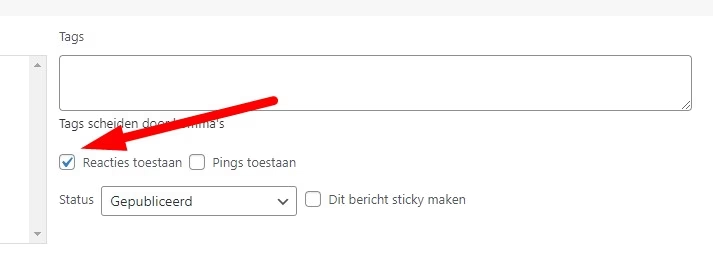
An option not often seen, but no less handy, is via the ‘quick edit’ option in the overview of blog posts. Here you can very easily determine per article whether you allow comments (or not).
About my.host
At my.host we offer everything an organization or individual might need to get a website or webshop online. We also offer tailor-made WordPress Hosting, so you can be sure that your site will always be online with the best security. In addition, you can give your visitors an even safer feeling with an SSL Certificate!
WordPress hosting bestellen?
Makkelijk, snel & veilig je eigen WordPress website.


Leave a Reply